

Welcome back, Excel enthusiasts! Today, we’re taking a deep dive into the world of Excel, navigating through its nooks and crannies, and demystifying its powerful tools. We’re talking about the Excel interface, the gatekeeper of your data manipulation powers. Strap in, let’s start our adventure!
The Home Screen: Your Starting Point
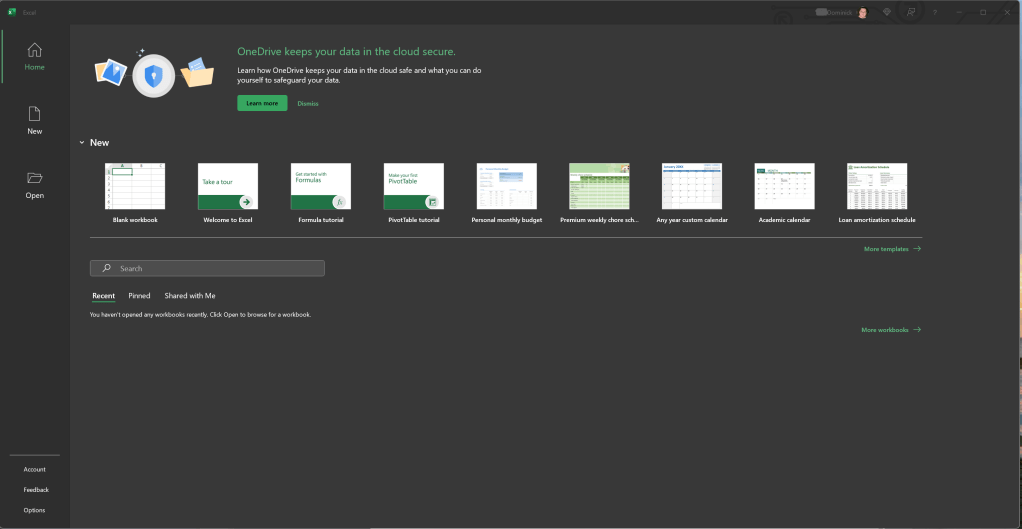
The Home screen is where your Excel journey begins. Open Excel, and it warmly greets you with options: new blank workbook, templates galore, and your recent files. It’s your command center, neatly arranged and inviting.
The left pane displays recently opened workbooks, ensuring your ongoing projects are just a click away. If the list gets too crowded, you can right-click a file and remove it from the list.
Need to tailor your Home screen to your liking? Go to the “File” tab, choose “Options”, and then select “Start up options”. Here, you can tweak what shows up when you fire up Excel. Customizing your Home screen can make your initial interaction with Excel more efficient and personalized.
The File Menu: Your Backstage Pass
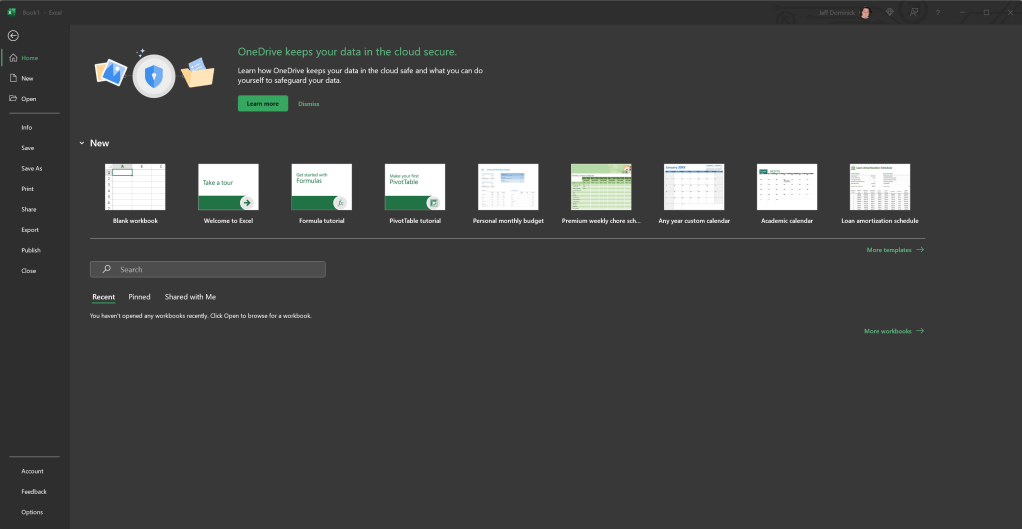
The File menu is like the backstage of a concert—it’s where all the essential, behind-the-scenes work happens. Open, save, print, share, or export your workbooks—this is your one-stop shop.
From here, you can dive into Excel’s options to fine-tune your workspace. Want Excel to autosave your workbooks every 5 minutes? Or maybe change the default font? You can do all this, and more, from the options menu. It’s your toolkit for modifying Excel’s behavior to suit your preferences and working style.
The Quick Access Toolbar: Your Personal Assistant

Nestled at the top left of the Excel window, the Quick Access Toolbar is a humble yet powerful ally. It keeps your most frequently used commands—like Save, Undo, and Redo—within reach, making them accessible with just one click.
Customizing the Quick Access Toolbar is a cinch. Click the small arrow to its right, and you’ll see a dropdown menu with commands that you can add. Need more? Choose “More Commands” to access a treasure trove of Excel commands that you can add to the toolbar. Customizing this toolbar can streamline your workflow by keeping your go-to commands readily available.
The Ribbon: Your Command Center

Meet the Ribbon, the heart of Excel’s interface. It’s an organized collection of all the features and functions that Excel offers, arranged into tabs and groups.
Want to insert a pivot table? It’s under the Insert tab. Need to add conditional formatting? You’ll find that under the Home tab. Each tab is dedicated to a type of activity, and each group within a tab contains related commands. It’s a well-organized, logical system that puts a vast array of tools at your fingertips.
The Ribbon is also customizable. Right-click anywhere on it and select “Customize the Ribbon”. Now you’re free to add or remove tabs, rearrange commands, or even create your own custom tabs with your favorite commands. Making the Ribbon your own can significantly boost your productivity.
There’s a lot packed into each tab, but today we’ll focus on some key sections that you’ll find yourself returning to time and again.
- Home Tab: This is where your basic formatting tools live, like font size and color, cell background color, and text alignment. You’ll also find essential functions like Sort & Filter, Find & Select, and the AutoSum command here.
- Insert Tab: When you need to add something to your workbook—be it pictures, charts, shapes, or even a hyperlink—the Insert tab is your go-to place.
- Formulas Tab: This is your formula headquarters, hosting a wealth of built-in Excel formulas categorized into libraries like Financial, Logical, Text, and more. Here, you can also access the Name Manager and the Formula Auditing tools, crucial for managing complex worksheets.
- Data Tab: Import data from external sources, sort and filter your data, or split text into different columns—all from the Data tab. This is also where you’ll find data validation and consolidation tools.
- Review Tab: Sharing or publishing your workbook? Use the Review tab for final touches. Here, you can add comments, track changes, protect your workbook, and check for spelling errors.
- View Tab: Customize your workspace from the View tab. Choose to show gridlines or headings, switch between normal and page layout views, freeze panes, or arrange multiple windows.
Customizing the Ribbon and Quick Access Toolbar
Excel allows you to personalize the Ribbon according to your needs. You can add, remove, or rearrange commands by right-clicking the Ribbon and selecting ‘Customize the Ribbon’. This brings up a dialog box where you can create your own tabs with specific sets of commands. The same can be done for the Quick Access Toolbar, which is located above the Ribbon and provides easy access to the commands you use most.
Keyboard Shortcuts: Your Speed Boosters
Keyboard shortcuts are the secret sauce of speedy Excel navigation. They let you perform commands faster than reaching for the mouse and clicking through menus. Here are ten indispensable shortcuts to boost your Excel game:
- Ctrl+S: Save your workbook in a blink.
- Ctrl+Z: Oops? No worries, undo the last action.
- Ctrl+C: Copy the selected cells instantly.
- Ctrl+V: Paste what you’ve copied with
- Ctrl+X: Cut the selected cells. They’re ready to be pasted wherever you need them.
- Ctrl+P: Ready to print? This shortcut takes you straight to the Print dialog box.
- Ctrl+A: Select all cells in the worksheet. This is handy when you want to apply a command to the whole sheet.
- Ctrl+Arrow Key: This zips you to the edge of the current data region in the direction of the arrow.
- Ctrl+Shift+Arrow Key: This extends your cell selection from the current cell to the end of the data region in the direction of the arrow.
- Alt+Enter: This lets you start a new line in the same cell, handy for adding multiple lines of text within a single cell.
- Shift + Space: Select an entire row. Add Ctrl to this combo to insert a new row.
- Ctrl + Space: Select an entire column. Like with Shift + Space, adding Ctrl inserts a new column.
- Ctrl + ;: This handy shortcut inserts the current date into the active cell.
- Ctrl + Shift + ;: Need the current time instead? This shortcut’s got you covered.
- Ctrl + 1: This opens the Format Cells dialog box, where you can customize cell properties to your heart’s content.
- Alt + Enter: Use this to insert a line break within a cell—perfect for those times when you need to organize information more clearly.
- Ctrl + Arrow keys: Navigate around a range with lightning speed. Ctrl+Right Arrow, for example, moves you to the last cell in a row, while Ctrl+Down Arrow zips you to the bottom of a column.
Mouse Magic: Click, Drag, Done!
The keyboard’s not the only productivity hero in Excel. Your mouse has got some tricks too, like formula dragging and auto fill. Let’s explore:
- Formula Dragging: Writing the same formula for different cells can be time-consuming. But with formula dragging, you simply write your formula once, then click and drag the fill handle (+) at the lower-right corner of the cell to copy the formula across multiple cells. Excel is clever enough to adjust the formula based on the new cell’s position.
- Double-Click Auto Fill: This one’s a real time-saver when dealing with a lot of data. Write your formula, then instead of dragging the fill handle, double-click it. Excel will automatically fill the formula down to the last row of your data.
Mastering these shortcuts can dramatically speed up your work. Plus, it feels like you’re part of a secret Excel club!
The Excel interface might seem complex at first, but once you spend some time with it, you’ll see it’s designed to make your life easier. It’s all about efficiency, organization, and customization. Whether it’s the welcoming Home screen, the useful File menu, the handy Quick Access Toolbar, the powerful Ribbon, or the speed-enhancing keyboard and mouse shortcuts, every element is there to help you work smarter, not harder.
So take a tour, tinker around, and don’t be afraid to customize, but remember, the trick to mastering Excel isn’t about knowing all the features and shortcuts; it’s about knowing the right ones that make your work easier and faster. So pick the ones that suit your needs best and practice them until they become second nature. Excel is your playground, so make it your own! It’ll repay your effort many times over with a smoother, faster, and more enjoyable Excel experience. Before long, you’ll be navigating Excel’s interface like a seasoned pro. Now, go forth and Excel!





Leave a Reply