

Quick note: WordPress objects to the embedding of iframes and script tags, so it stripped them out of the examples. The correct format to use once you get there is < script src = “address” > </ script > (without the excessive spaces) for the scripts, and < iframe src = “address” > < /iframe > for the report embed.
Picture this: You’re the tech genius in a high-stakes spy movie. Your mission, should you choose to accept it, involves infiltrating the complex digital landscape to embed crucial intelligence — Power BI reports, that is — directly into the heart of your web application. This isn’t just any operation; it’s “Operation Code-In.”
In the world of data espionage, information is king, and presenting it effectively is your secret weapon. Power BI has armed you with the reports, but now it’s time to deploy them with precision. Your target? A sleek, responsive web application that not only houses your Power BI reports but also allows operatives (users) to navigate through them with the stealth and ease of a seasoned spy.
Throughout this mission briefing, we’ll guide you through constructing a custom HTML wrapper — your digital disguise — complete with a stylish Bootstrap navigation bar and some crafty JavaScript maneuvers for seamless report transitions. Whether you’re aiming to enhance your agency’s internal dashboard or present classified data to your clients in a polished format, this guide is your blueprint to a more cohesive and professional data presentation.
Why is this mission critical? It’s all about the user experience, agent. By embedding your reports into a custom wrapper, you’re not just displaying data; you’re creating an immersive environment. You’re providing a context that aligns with your agency’s branding and a navigation that’s as intuitive as a spy’s instincts. This isn’t just about aesthetics; it’s about constructing an environment where your data can truly shine and be understood at a glance.
Ready to embark on “Operation Code-In”? Let’s dive into the world of data espionage and turn you into the tech hero your team needs.
Section 1: Assembling Your Tech Arsenal
While we will be using a few different technologies here, they’re all relatively simple (if intimidating at first glance), and we won’t be plumbing the technical depths. If you’re interested in expanding your capabilities, you can get a good understanding of HTML in a few days, a functional understanding of jQuery and the other libraries we’re using in a week or so. I highly recommend interactive courses like those found at https://www.codecademy.com for both.
Jeff
A full understanding of JavaScript itself is a study of months, years, or a lifetime. Should you choose to travel that particular route, beware; a thorough understanding of JavaScript may provoke amazement, pity, or concern in others.
Welcome to the first phase of “Operation Code-In.” Every skilled agent needs a set of tools tailored for the mission at hand. In the digital realm, these tools are the software and libraries that will help us construct our web application. Let’s take a moment to familiarize ourselves with the tech arsenal we’ll be deploying:
Visual Studio Code (VSCode)
Think of VSCode as your high-tech gadget for coding. It’s a powerful, open-source code editor developed by Microsoft. With its intuitive interface, plethora of extensions, and robust support for a multitude of programming languages, it’s the Swiss Army knife for developers. For our mission, it’ll serve as the command center where we’ll write and manage our code.
HTML Tag Types
In the world of web development, HTML tags are the building blocks of the internet. They’re like the secret codes that tell your browser what to display. For our mission, we’ll be using a variety of tags, including:
<div>: Think of these as containers that help organize content on your page.<nav>: This tag represents a section of a page that links to other pages or parts within the page. It’s our digital compass.<iframe>: Our secret window to embed external content, like Power BI reports, directly into our page.
jQuery
jQuery is like the Q to our James Bond — a fast, small, and feature-rich JavaScript library. It simplifies things like HTML document traversal and manipulation, event handling, and animation, making it easier to use JavaScript on your website. It’s the gadget that makes complex tasks simpler.
Popper.js
In the world of espionage, information needs to be precise. Popper.js is a library that helps manage “popper” elements — tooltips, popovers, dropdowns — ensuring they’re perfectly positioned over their reference elements. It’s all about precision placement.
Bootstrap (JS and CSS)
Bootstrap is the sleek, tailored suit for your website. It’s a front-end framework that helps you design beautiful, responsive websites quickly and easily. It comes with a set of pre-designed components (think buttons, navigation bars, forms) that you can customize to fit your mission’s aesthetic. The JavaScript component adds interactive elements, making your website not just stylish but also functional.
Now, agents, don’t worry if you’re not familiar with all these tools and technologies. You don’t need to be a master hacker to follow along. We’ll guide you through each step, explaining what’s happening along the way. Our mission is not just to build something great but to understand the how and why behind it.
With our tech arsenal ready, it’s time to dive into the action. Let’s move on to setting up our base of operations — the HTML structure of our web application.
Section 2: Establishing the Base of Operations – HTML Structure
Now that we’ve assembled our tech arsenal, it’s time to lay down the foundation of our digital fortress. This phase of “Operation Code-In” involves constructing the HTML structure, which will serve as the scaffold for our web application. Don’t worry, agent; we’ll navigate through this together.
Step 1: Initiating the HTML File
Every mission starts with a plan. In our case, it’s the HTML file that outlines the structure of our web application. Launch your VSCode and create a new file named index.html. This file will be the blueprint of our operation.
Step 2: Crafting the Skeleton
HTML is like the bones of your web page. It gives it structure and form. Here’s a basic skeleton to start with:
<html lang="en">
<head>
    <meta charset="UTF-8">
    <meta name="viewport" content="width=device-width, initial-scale=1.0">
    <title>Operation Code-In: Power BI Embed</title>
    <!-- We'll add our Bootstrap and other libraries here soon -->
</head>
<body>
    <!-- Our content will go here -->
</body>
</html>
This code sets up the basic structure of an HTML document. The <head> section is where we’ll load our gadgets (libraries and stylesheets), and the <body> is where the action happens — the content of our web page.
Step 3: Deploying the Navigation Bar
A good operative knows their way around. That’s why we need a navigation bar — our digital compass. Bootstrap provides us with a sleek, responsive navbar component that we can customize for our mission. Here’s how we can implement it:
<nav class="navbar navbar-expand-lg navbar-light bg-light">
    <a class="navbar-brand" href="#">Mission Reports</a>
    <button class="navbar-toggler" type="button" data-toggle="collapse" data-target="#navbarNav" aria-controls="navbarNav" aria-expanded="false" aria-label="Toggle navigation">
        <span class="navbar-toggler-icon"></span>
    </button>
    <div class="collapse navbar-collapse" id="navbarNav">
        <ul class="navbar-nav">
            <li class="nav-item active">
                <a class="nav-link" href="#" onclick="changeReport('report1')">Report 1</a>
            </li>
            <li class="nav-item">
                <a class="nav-link" href="#" onclick="changeReport('report2')">Report 2</a>
            </li>
            <!-- Add more reports as needed -->
        </ul>
    </div>
</nav>
This snippet creates a responsive navigation bar with links. We’ll use JavaScript to make these links switch between our Power BI reports without reloading the page.
Step 4: Embedding the Power BI Reports
The centerpiece of our mission is the Power BI reports. We’ll use an <iframe> to embed them into our web page. Here’s how you can set it up:
<div class=”embed-responsive embed-responsive-16by9″> <iframe src=”http://YOUR_EMBED_URL_FOR_REPORT_1″></iframe> </div>
Replace YOUR_EMBED_URL_FOR_REPORT_1 with the actual embed URL for your first report. This <iframe> will serve as the window to our Power BI intelligence.
Step 5: Finalizing the Base
With the navigation bar and the <iframe> in place, our base of operations is established. The structure is set, and we’re ready to move on to the next phase — wiring up our gadgets (libraries and stylesheets) and making sure everything is operational.
At this point, your html document should look something like the example below:
<!DOCTYPE html>
<html lang="en">
<head>
    <meta charset="UTF-8">
    <meta name="viewport" content="width=device-width, initial-scale=1.0">
    <title>Operation Code-In: Power BI Embed</title>
    <!-- Bootstrap CSS -->
</head>
<body>
    <!-- Navigation Bar -->
    <nav class="navbar navbar-expand-lg navbar-light bg-light">
        <a class="navbar-brand" href="#">Mission Reports</a>
        <button class="navbar-toggler" type="button" data-toggle="collapse" data-target="#navbarNav" aria-controls="navbarNav" aria-expanded="false" aria-label="Toggle navigation">
            <span class="navbar-toggler-icon"></span>
        </button>
        <div class="collapse navbar-collapse" id="navbarNav">
            <ul class="navbar-nav">
                <li class="nav-item active">
                    <a class="nav-link" href="#" onclick="changeReport('report1')">Report 1</a>
                </li>
                <li class="nav-item">
                    <a class="nav-link" href="#" onclick="changeReport('report2')">Report 2</a>
                </li>
                <!-- Add more reports as needed -->
            </ul>
        </div>
    </nav>
    <!-- Power BI Report iFrame -->
    <div class="embed-responsive embed-responsive-16by9">
        http://YOUR_EMBED_URL_FOR_REPORT_1 <!-- This should also be an iframe -->
    </div>
    <!-- Bootstrap JS, Popper.js, and jQuery -->
</body>
</html>
While this completes the skeleton… sleek, suave, and dashing it is not. You can save this the code so far and open that file in a web browser of your choice, but at the moment, that will result in a very unimpressive rendering like the one below:
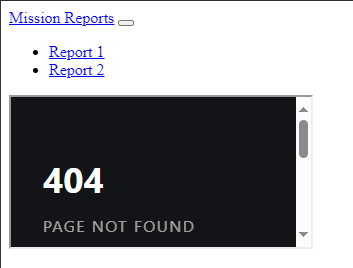
Fear not, for this is all part of the plan. We’ve laid the groundwork, and soon we’ll inject style and interactivity into our project. With the addition of Bootstrap’s CSS and JavaScript libraries, along with Popper.js and jQuery, our digital fortress will transform from a skeleton into a suave and sophisticated command center, ready to impress and perform.
In the next phase of “Operation Code-In,” we’ll activate these gadgets, bringing our navigation bar to life and ensuring our Power BI reports are displayed in all their glory. Stay vigilant, agent. The mission is about to get even more exciting
Section 3: Arming the Gadgets – Adding Style and Functionality
Finally, it’s time to arm our gadgets and bring our digital fortress to life. This phase of “Operation Code-In” involves infusing style and interactivity into our web application. We’ll be adding the Bootstrap CSS for style, and the Bootstrap JavaScript, Popper.js, and jQuery for functionality. Let’s get to work.
Step 1: Styling with Bootstrap CSS
First things first, let’s make our web application look sharp. Add the following link to the Bootstrap CSS in the <head> section of your HTML document:
<link rel="stylesheet" href="https://stackpath.bootstrapcdn.com/bootstrap/4.5.2/css/bootstrap.min.css">
This line of code is like the tailor-made suit for your website. It provides a set of pre-designed styles that make our navigation bar and other components look sleek and professional right out of the box.
Step 2: Adding Interactivity with JavaScript Libraries
Now, let’s make our web application not just stylish, but also functional. Add the following scripts at the bottom of the <body> tag:
<!-- jQuery --> https://code.jquery.com/jquery-3.5.1.slim.min.js <!-- Popper.js --> https://cdn.jsdelivr.net/npm/popper.js@1.9.1/dist/umd/popper.min.js <!-- Bootstrap JavaScript --> https://stackpath.bootstrapcdn.com/bootstrap/4.5.2/js/bootstrap.min.js
Here’s what each script does:
- jQuery: This library simplifies HTML document traversing, event handling, and animation. It’s our secret agent in the field of JavaScript.
- Popper.js: This is our precision tool for managing poppers in web applications (think tooltips, popovers, dropdowns). It ensures that elements are perfectly positioned.
- Bootstrap JavaScript: This script brings our navigation bar to life, handling things like the collapse and expand functionality on smaller screens (the hamburger menu). It’s what makes our navigation bar responsive and user-friendly.
With these scripts in place, our web application is now both stylish and interactive. It’s ready to impress and perform.
Step 3: Reviewing the Armed HTML Document
Let’s take a look at our HTML document now that we’ve armed our gadgets:
<!DOCTYPE html>
<html lang="en">
<head>
    <meta charset="UTF-8">
    <meta name="viewport" content="width=device-width, initial-scale=1.0">
    <title>Operation Code-In: Power BI Embed</title>
    <!-- Bootstrap CSS -->
    <link rel="stylesheet" href="https://stackpath.bootstrapcdn.com/bootstrap/4.5.2/css/bootstrap.min.css">
</head>
<body>
    <!-- Navigation Bar -->
    <nav class="navbar navbar-expand-lg navbar-light bg-light">
        <a class="navbar-brand" href="#">Mission Reports</a>
        <button class="navbar-toggler" type="button" data-toggle="collapse" data-target="#navbarNav" aria-controls="navbarNav" aria-expanded="false" aria-label="Toggle navigation">
            <span class="navbar-toggler-icon"></span>
        </button>
        <div class="collapse navbar-collapse" id="navbarNav">
            <ul class="navbar-nav">
                <li class="nav-item active">
                    <a class="nav-link" href="#" onclick="changeReport('report1')">Report 1</a>
                </li>
                <li class="nav-item">
                    <a class="nav-link" href="#" onclick="changeReport('report2')">Report 2</a>
                </li>
                <!-- Add more reports as needed -->
            </ul>
        </div>
    </nav>
    <!-- Power BI Report iFrame -->
    <div class="embed-responsive embed-responsive-16by9">
        http://YOUR_EMBED_URL_FOR_REPORT_1
    </div>
    <!-- Bootstrap JS, Popper.js, and jQuery. THESE SHOULD ALL BE IN SCRIPT TAGS -->
    https://code.jquery.com/jquery-3.5.1.slim.min.js
    https://cdn.jsdelivr.net/npm/popper.js@1.9.1/dist/umd/popper.min.js
    https://stackpath.bootstrapcdn.com/bootstrap/4.5.2/js/bootstrap.min.js
</body>
</html>
Agent, our digital fortress is now armed and operational. The style and functionality are in place, and it’s ready for the next phase of our mission. If you started with a published report link in the iframe, you should now have something along the lines of the image below when you save and open it with your browser.

In the upcoming section, we’ll add the JavaScript functionality to switch between reports seamlessly. Stay alert, the mission is about to reach its climax!
Section 4: The Heart of the Operation – JavaScript Functionality
Agent, it’s time to breathe life into our mission. This section is the heart of “Operation Code-In,” where we’ll add the JavaScript functionality that allows users to switch between Power BI reports seamlessly. We’ll keep our JavaScript inline for the sake of simplicity, but remember, in a standard operation, it’s best practice to store your JavaScript in separate files for better organization and maintainability.
Step 1: Setting Up the JavaScript
Within the <body> tag of your HTML document, right before the closing </body> tag, add a <script> tag. This is where we’ll write our JavaScript code:
<script>
    // Our JavaScript will go here
</script>
Step 2: Writing the Report Switching Function
Inside the <script> tag, we’ll write a function named changeReport. This function will take one parameter, reportName, which corresponds to the report the user wants to view:
<script>
    function changeReport(reportName) {
        // Logic to change the report will go here
    }
</script>
Step 3: Implementing the Switching Logic
Now, let’s add the logic to change the src attribute of the <iframe> based on the reportName:
<script>
    function changeReport(reportName) {
        var reportFrame = document.getElementById('reportFrame');
        switch(reportName) {
            case 'report1':
                reportFrame.src = 'YOUR_EMBED_URL_FOR_REPORT_1';
                break;
            case 'report2':
                reportFrame.src = 'YOUR_EMBED_URL_FOR_REPORT_2';
                break;
            // Add more cases as needed for additional reports
            default:
                reportFrame.src = ''; // A default case, just in case
        }
    }
</script>
Replace YOUR_EMBED_URL_FOR_REPORT_1 and YOUR_EMBED_URL_FOR_REPORT_2 with the actual embed URLs for your reports.
Please don’t worry overmuch about memorizing the specifics behind this – learning JavaScript can be a delightful, complex, engaging, and utterly miserable journey, but much as I’m doing here, you’ll find samples shared across great communities online. StackOverflow has always been a favorite of mine, but there are a plethora of books, articles, blogs, and other online sources to learn JS from, if you want to take a deeper look.
I highly recommend nearly everything printed by No Starch Press for most people learning, and the “You don’t know JS” series (by Kyle Simpson) for the perfectionist (or massochist).
Jeff
Step 4: Reviewing the Complete HTML Document
With the JavaScript functionality in place, let’s review the complete HTML document:
<!DOCTYPE html>
<html lang="en">
<head>
    <meta charset="UTF-8">
    <meta name="viewport" content="width=device-width, initial-scale=1.0">
    <title>Operation Code-In: Power BI Embed</title>
    <!-- Bootstrap CSS -->
    <link rel="stylesheet" href="https://stackpath.bootstrapcdn.com/bootstrap/4.5.2/css/bootstrap.min.css">
</head>
<body>
    <!-- Navigation Bar -->
    <nav class="navbar navbar-expand-lg navbar-light bg-light">
        <a class="navbar-brand" href="#">Mission Reports</a>
        <button class="navbar-toggler" type="button" data-toggle="collapse" data-target="#navbarNav" aria-controls="navbarNav" aria-expanded="false" aria-label="Toggle navigation">
            <span class="navbar-toggler-icon"></span>
        </button>
        <div class="collapse navbar-collapse" id="navbarNav">
            <ul class="navbar-nav">
                <li class="nav-item active">
                    <a class="nav-link" href="#" onclick="changeReport('report1')">Report 1</a>
                </li>
                <li class="nav-item">
                    <a class="nav-link" href="#" onclick="changeReport('report2')">Report 2</a>
                </li>
                <!-- Add more reports as needed -->
            </ul>
        </div>
    </nav>
    <!-- Power BI Report iFrame -->
    <div class="embed-responsive embed-responsive-16by9">
        http://YOUR_EMBED_URL_FOR_REPORT_1
    </div>
    <!-- Bootstrap JS, Popper.js, and jQuery -->
    https://code.jquery.com/jquery-3.5.1.slim.min.js
    https://cdn.jsdelivr.net/npm/popper.js@1.9.1/dist/umd/popper.min.js
    https://stackpath.bootstrapcdn.com/bootstrap/4.5.2/js/bootstrap.min.js
    <!-- Inline JavaScript -->
    <script>
        function changeReport(reportName) {
            var reportFrame = document.getElementById('reportFrame');
            switch(reportName) {
                case 'report1':
                    reportFrame.src = 'YOUR_EMBED_URL_FOR_REPORT_1';
                    break;
                case 'report2':
                    reportFrame.src = 'YOUR_EMBED_URL_FOR_REPORT_2';
                    break;
                // Add more cases as needed for additional reports
                default:
                    reportFrame.src = ''; // A default case, just in case
            }
        }
    </script>
</body>
</html>
At this point, our mission is nearly complete. Our web application is now fully operational, with a sleek navigation bar and the ability to switch between Power BI reports seamlessly. If you’ve included actual report links to multiple reports (or found a few published publicly online, like I have for this article), you should now be able to swap between them by clicking the names in the navigation bar.

Bonus UX Appeal
Enhancing user experience with visual cues is a hallmark of a well-designed operation. Let’s add some JavaScript code to highlight the active report in the navigation bar.
Step 1: Adjusting the HTML
First, we’ll need to adjust the HTML slightly to make our JavaScript more effective. We’ll add a class to each <li> element in the navbar to identify them easily:
<li class="nav-item" id="navReport1">
    <a class="nav-link" href="#" onclick="changeReport('report1')">Report 1</a>
</li>
<li class="nav-item" id="navReport2">
    <a class="nav-link" href="#" onclick="changeReport('report2')">Report 2</a>
</li>
Step 2: Updating the JavaScript Function
Now, let’s enhance the changeReport function to add the ‘active’ class to the currently selected report and remove it from the others:
<script>
    function changeReport(reportName) {
        var reportFrame = document.getElementById('reportFrame');
        var navItems = document.querySelectorAll('.nav-item');

        // Remove 'active' class from all nav items
        navItems.forEach(function(navItem) {
            navItem.classList.remove('active');
        });
        // Add 'active' class to the selected report and change the iframe src
        switch(reportName) {
            case 'report1':
                reportFrame.src = 'YOUR_EMBED_URL_FOR_REPORT_1';
                document.getElementById('navReport1').classList.add('active');
                break;
            case 'report2':
                reportFrame.src = 'YOUR_EMBED_URL_FOR_REPORT_2';
                document.getElementById('navReport2').classList.add('active');
                break;
            // Add more cases as needed for additional reports
            default:
                reportFrame.src = ''; // A default case, just in case
        }
    }
</script>
This updated function does the following:
- It gets a reference to the iframe where the reports are displayed.
- It selects all the navigation items and removes the ‘active’ class from them. This ensures that only one report is highlighted at a time.
- It switches the iframe’s
srcto the selected report’s URL. - It adds the ‘active’ class to the navigation item corresponding to the selected report.
With this enhancement, users will have a clear visual indication of which report is currently being viewed. This small touch adds polish to our operation, ensuring a smooth and intuitive experience for all users. Well done, agent! Our mission is now truly complete.
Mission Debrief: The Versatility of Operation Code-In
Agents, as we conclude “Operation Code-In,” it’s time to debrief and reflect on the versatility and potential applications of the digital fortress we’ve constructed. Our mission centered around creating a sleek, responsive HTML wrapper for Power BI reports, but the implications of our work extend far beyond.
Centralizing Intelligence – Power BI Reports and Beyond
The primary objective of our mission was to centralize multiple Power BI reports in one accessible location. By embedding these reports within a single web page and providing a seamless navigation experience, we’ve empowered users to access vital intelligence without the need to jump between multiple pages or platforms. This streamlined approach not only enhances user experience but also promotes efficiency and data-driven decision-making.
Beyond Reports: A Multipurpose Command Center
However, the framework we’ve established is not limited to Power BI reports. Think of it as a multipurpose command center, capable of embedding and displaying a wide array of digital assets. Here are some alternative applications:
- Surveys and Forms: Embedding surveys or forms directly into the web page allows for immediate data collection and interaction with users. This can be invaluable for gathering feedback, conducting research, or registering participants for events.
- Low-Code Applications: Low-code platforms often provide embeddable components or applications. By integrating these into our wrapper, we can extend the functionality of our web page to include custom apps, dashboards, or tools without extensive coding.
- External Websites: Sometimes, you might want to provide users with quick access to external resources or partner websites. Embedding these within the wrapper can keep users engaged with your content while providing them with additional value.
- Multimedia Content: Embedding videos, audio, or other multimedia content can enhance the user experience, making the web page a one-stop shop for information, education, or entertainment.
The Power of Embedding
The key takeaway from “Operation Code-In” is the power of embedding. By embedding content directly into web pages, we can create centralized hubs of information and functionality. This not only simplifies the user experience but also provides a cohesive and branded environment for users to interact with.
Flexibility in Deployment: From Local Files to Hosted Solutions
Throughout this mission, we’ve constructed our digital fortress in such a way that it can be stored and accessed as a local file. This approach offers simplicity and immediacy, allowing you to see the fruits of your labor without the need for a web server. However, the foundational concepts and techniques we’ve employed are not confined to local environments.
The same principles apply to fully hosted web pages. Whether you’re deploying to a small-scale personal server or a large-scale enterprise hosting solution, the HTML, CSS, JavaScript, and Bootstrap framework we’ve utilized are universally applicable. This means you can take our blueprint and scale it up, integrating it into more complex web architectures, content management systems, or even integrating it with backend technologies for dynamic content delivery.
Beyond the Basics: The Gateway to Advanced Operations
Consider “Operation Code-In” as your gateway to more advanced operations in the digital realm. The skills you’ve honed here lay the groundwork for further exploration and mastery. You can delve into server-side scripting, explore APIs for dynamic data retrieval, or even venture into the realms of web application frameworks and single-page applications.
The digital landscape is vast and varied, and the tools and techniques you’ve learned are your keys to unlocking its potential. Whether you’re enhancing user experiences, streamlining workflows, or creating entirely new digital ecosystems, the principles of thoughtful design, user-centric interactivity, and responsive frameworks will serve you well.
In Conclusion
The skills and techniques you’ve acquired during this mission are transferable to a multitude of scenarios. Whether you’re centralizing reports, creating a hub for resources, or building an interactive platform for users, the principles remain the same. With a solid understanding of HTML, CSS, JavaScript, and Bootstrap, you’re now equipped to embark on similar missions, tailoring the approach to meet the unique needs of each operation.
Remember, the digital world is ever-evolving, and as agents of innovation, it’s our duty to adapt, evolve, and apply our skills to enhance the digital landscape. “Operation Code-In” is complete, but your mission as a creator of seamless digital experiences is just beginning. Stay curious, stay creative, and above all, keep coding.
Mission accomplished, agents!


 Abstract Foundations
Leave a comment